
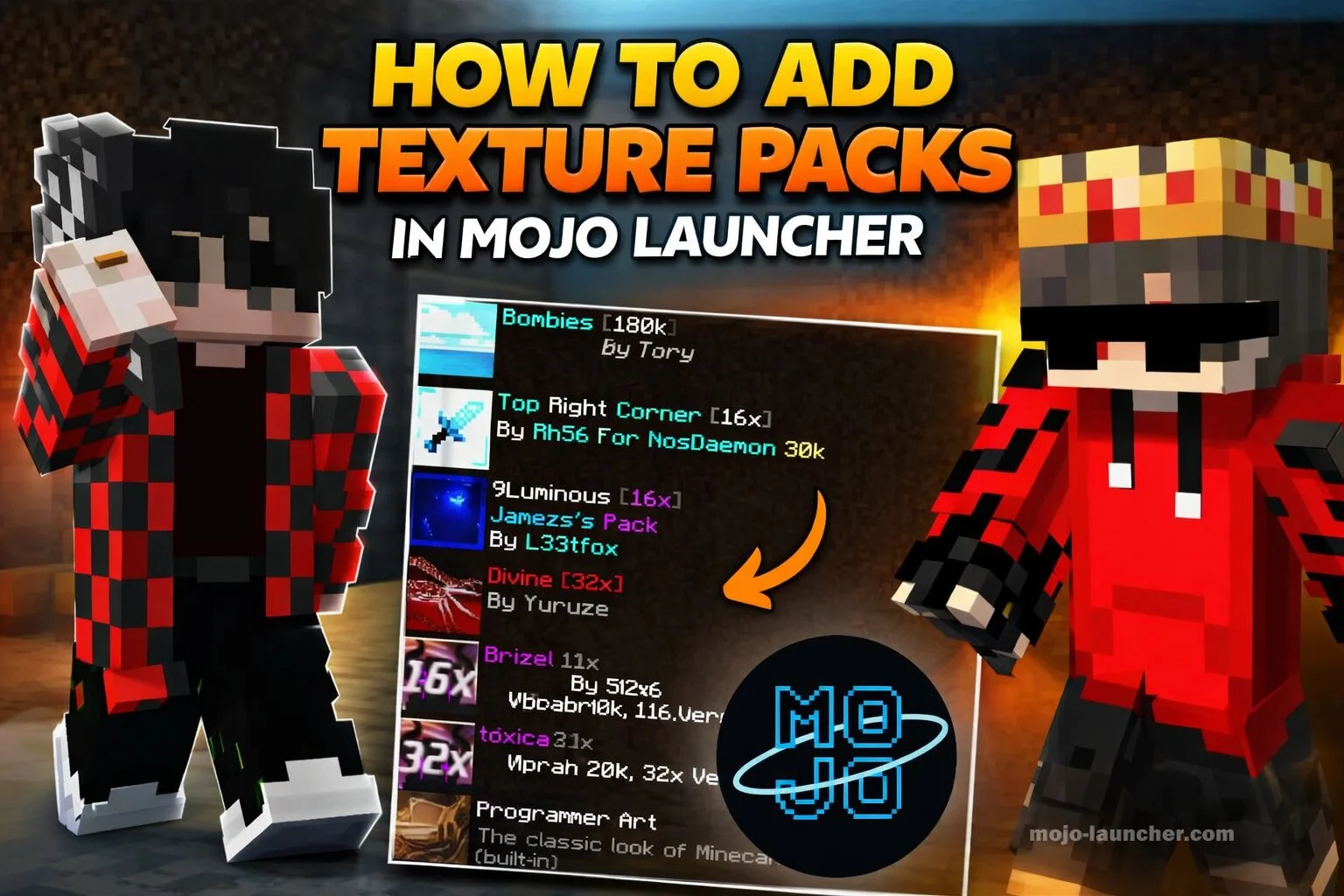
Minecraft players love customizing their game to make it look more beautiful and unique. One of the easiest ways to change the appearance of the game is by using texture packs. Texture packs modify the look of blocks, items, mobs, and other visual elements. If you are using Mojo Launcher, installing texture packs is simple and can greatly improve your gaming experience.
This guide explains how to add texture packs in Mojo Launcher step-by-step so you can quickly enhance your Minecraft visuals.
What Are Texture Packs?
Texture packs are files that change the visual design of Minecraft. They can modify many elements such as:
- Block textures
- Item appearance
- Mob designs
- Game UI
- Environment effects
Some texture packs provide realistic graphics, while others give the game a cartoon or medieval style.
Also Read: Best Minecraft Shaders for Mojo Launcher
Requirements Before Installing Texture Packs
Before installing a texture pack in Mojo Launcher, make sure you have:
- Minecraft installed through Mojo Launcher
- A compatible texture pack file (.zip format)
- Enough device storage
- The correct Minecraft version
Downloading a texture pack designed for the same Minecraft version ensures better compatibility.
Step-by-Step Guide to Add Texture Packs in Mojo Launcher
- Step 1: Download a Texture Pack
- First, download a texture pack from a trusted Minecraft resource website. Most texture packs come in ZIP format.
- Do not extract the file unless the instructions require it.
- Step 2: Open Mojo Launcher
- Launch the Mojo Launcher app on your device and start Minecraft once to ensure the game folders are created.
- Step 3: Locate Minecraft Resource Pack Folder
- Go to your device storage and navigate to:
- Android > data > net.kdt.pojavlaunch > files > .minecraft > resourcepacks
- This folder is where all texture packs should be stored.
- Go to your device storage and navigate to:
- Step 4: Move the Texture Pack File
- Copy the downloaded texture pack ZIP file and paste it inside the resourcepacks folder.
- Make sure the file remains in ZIP format.
- Step 5: Activate the Texture Pack
- Now open Minecraft using Mojo Launcher.
Follow these steps:
- Open Options
- Click Resource Packs
- Select your installed texture pack
- Move it to the active resource packs section
- Click Done
Minecraft will reload textures automatically.
Tips for Better Texture Pack Performance
To improve performance while using texture packs:
- Use 16x or 32x resolution packs for smooth gameplay
- Avoid high-resolution packs on low-end devices
- Close background apps before playing
- Update Mojo Launcher regularly
Common Issues and Fixes
- Problem: Texture Pack Not Showing
- Solutions: Make sure the file is placed in the resourcepacks folder.
- Problem: Game Lag After Installing Pack
- Solutions: Use a lower resolution texture pack.
- Problem: Pack Not Compatible
- Solutions: Check if the texture pack matches your Minecraft version.
Conclusion
Adding texture packs in Mojo Launcher is a simple way to transform the visual style of Minecraft. By downloading a compatible texture pack and placing it in the correct folder, you can easily customize the game to match your personal style.
Whether you prefer realistic textures or colorful designs, texture packs allow you to create a unique Minecraft experience with Mojo Launcher.