
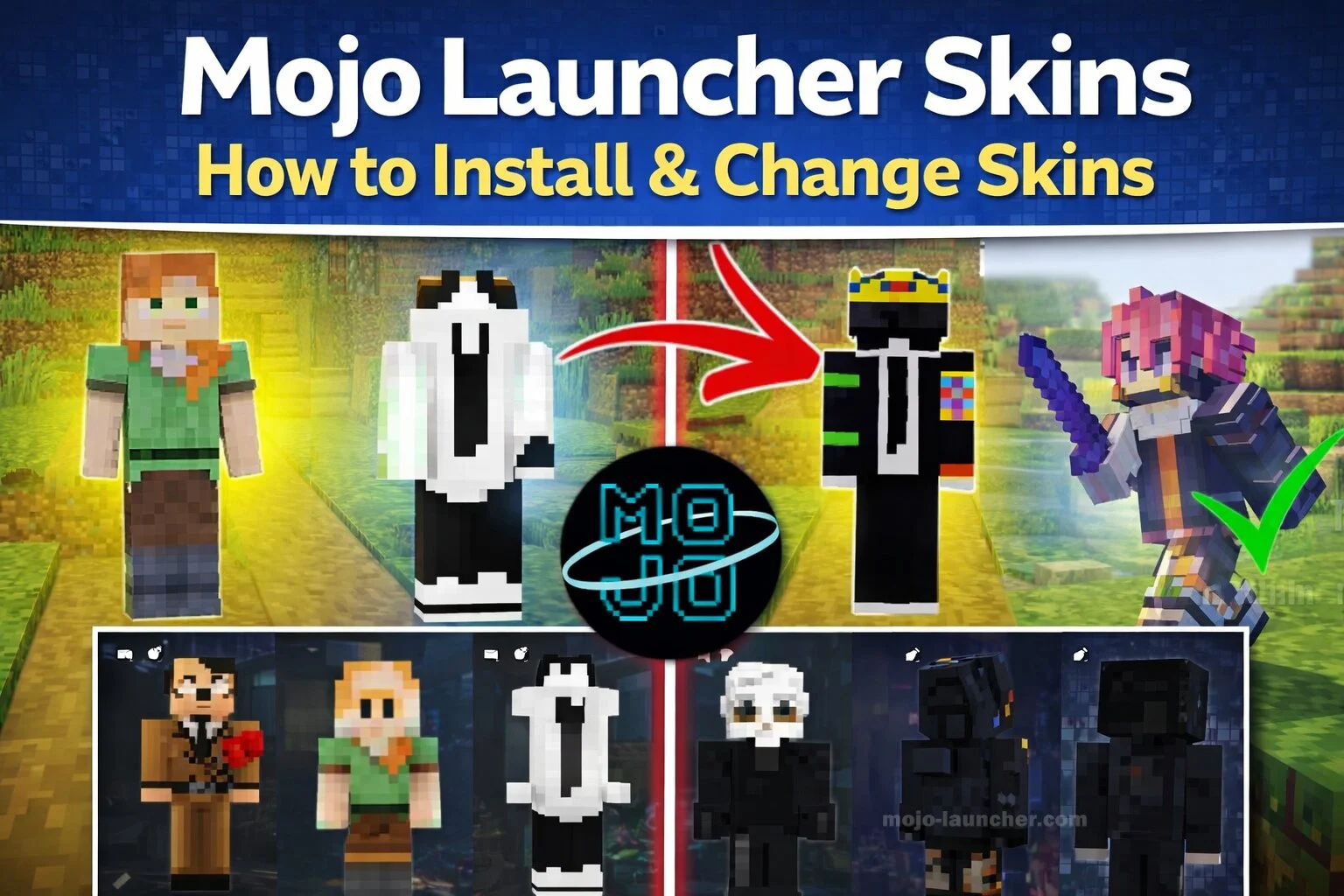
One of the most enjoyable aspects of Minecraft is the ability to customize your character. Minecraft skins allow players to change the appearance of their character and express their creativity. If you are using Mojo Launcher, installing and changing skins is a simple process.
This guide explains how to install and change skins in Mojo Launcher, along with helpful tips for choosing the best skins.
What Are Minecraft Skins?
Minecraft skins are image files that change the appearance of your player character. Instead of using the default character design, players can create or download custom skins.
Skins can include designs such as:
- Superheroes
- Anime characters
- Fantasy warriors
- Custom player designs
This customization helps players stand out in multiplayer worlds.
How to Install Skins in Mojo Launcher
- Step 1: Download a Skin File
- First, download a Minecraft skin from a trusted website. Skins usually come in PNG image format.
- Choose a skin design that you like and save it to your device.
- Step 2: Open Mojo Launcher
- Launch the Mojo Launcher application and go to the profile or account settings section.
- This section allows you to customize player appearance.
- Step 3: Upload the Skin
- Locate the skin upload option and select the PNG skin file from your device.
- Once uploaded, the launcher will apply the skin to your player profile.
- Step 4: Save and Apply Changes
- After selecting the skin file, confirm the changes and launch Minecraft.
- Your character will now appear with the new skin inside the game.
How to Change Skins
Changing skins is easy and can be done anytime.
Simply repeat the steps:
- Download a new skin
- Upload it in Mojo Launcher settings
- Save the changes
Your new skin will replace the previous one.
Also Read: How to Add Texture Packs in Mojo Launcher
Tips for Choosing Good Skins
When selecting skins, consider the following:
- Choose high-quality skin designs
- Use skins compatible with your Minecraft version
- Avoid downloading skins from unsafe websites
Custom skins should also match your personal style or theme.
Benefits of Using Custom Skins
Custom skins make Minecraft more enjoyable by adding personality to your character.
Benefits include:
- Unique character appearance
- Better identity in multiplayer servers
- Creative self-expression
Many players enjoy creating their own skins using simple editing tools.
Conclusion
Mojo Launcher makes it easy to install and change Minecraft skins. By downloading a skin file and uploading it through the launcher settings, players can quickly customize their character’s appearance.
Whether you prefer superhero skins, fantasy designs, or completely original creations, skins allow you to personalize your Minecraft adventure and stand out in the game world.